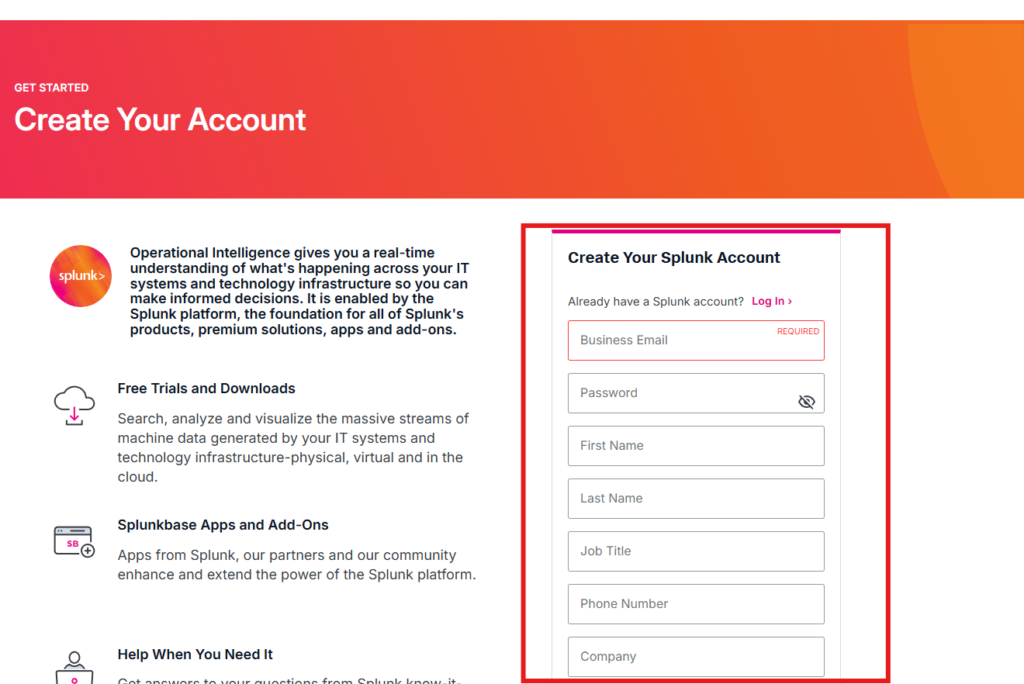
To install Splunk 10 on Ubuntu Linux, first create an account on the Splunk website and download the Splunk Enterprise 10 installation package for Ubuntu.
https://www.splunk.com/en_us/download/splunk-enterprise.html
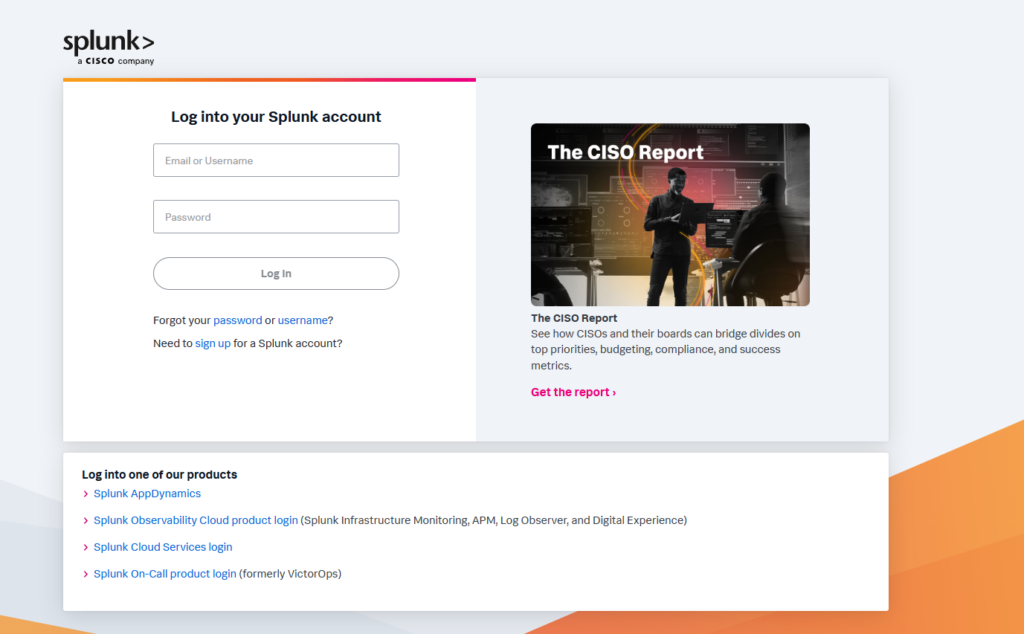
If you already have a Splunk account, log in and download the Splunk Enterprise 10 installation package for Ubuntu Linux.
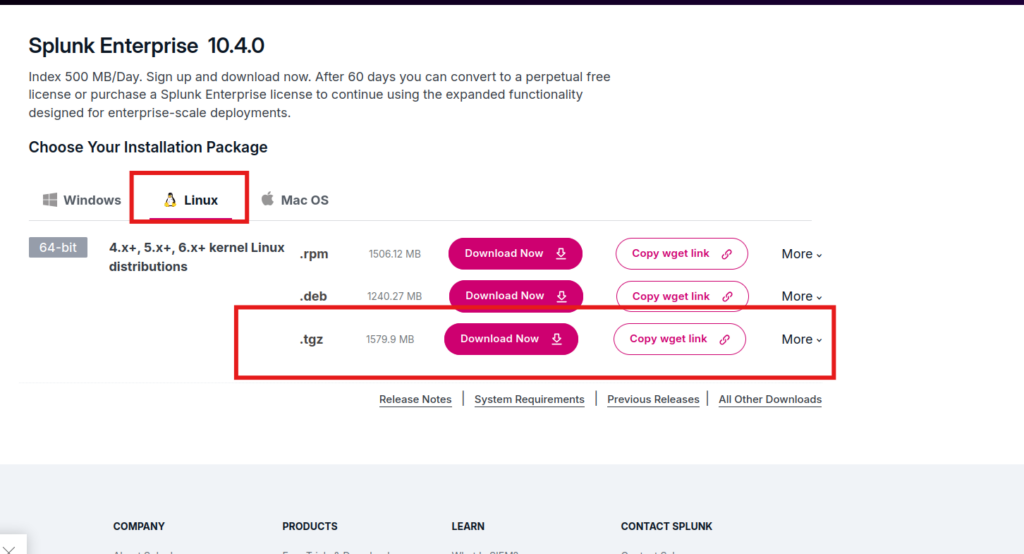
A new window will appear. Click Linux, then either click the Download button for the .tgz file or select Copy Wget Link to download the file using the command line.
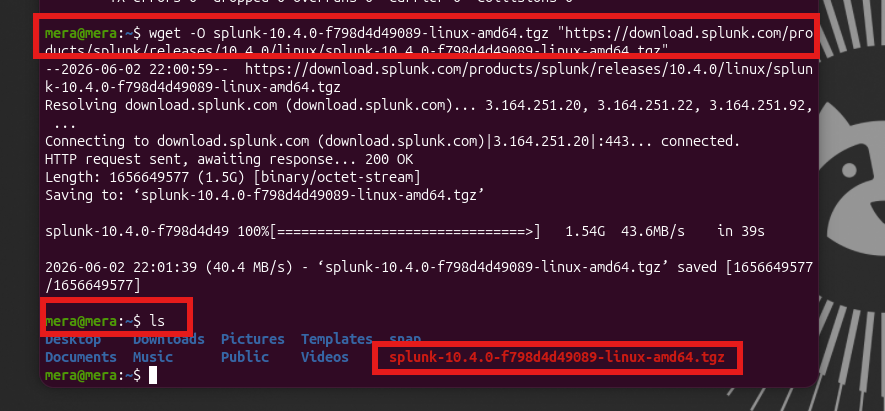
To download the file, open a terminal on your computer, paste the copied Wget link, and press Enter. The download will start automatically.After the download is complete, run the ls command to verify that the file has been downloaded. You should see the downloaded .tgz file in the current directory.
Decompress the downloaded .tgz file using the following command:
tar -xvzf splunk-<version>-linux-amd64.tgz
For example:
tar -xvzf splunk-10.x.x-linux-amd64.tgz
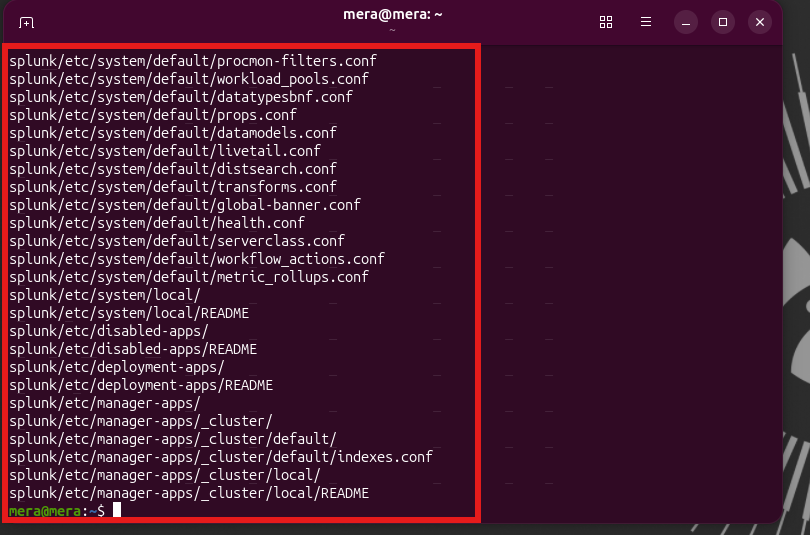
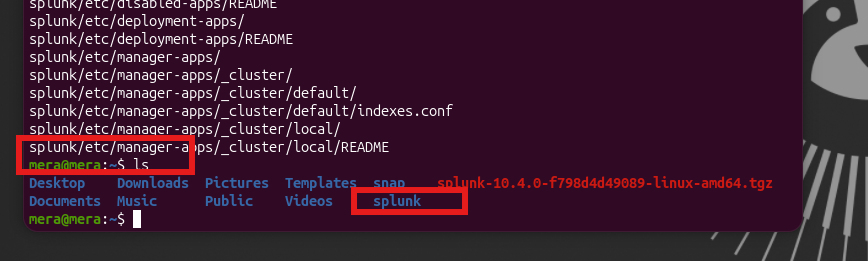
This command extracts the contents of the Splunk archive into a directory named splunk. After extraction, you can verify the directory was created by running:
lsYou should see a folder named splunk in the current directory.

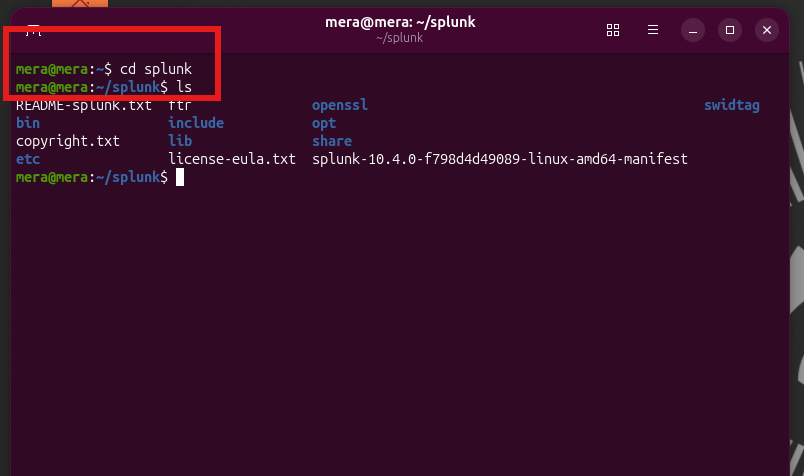
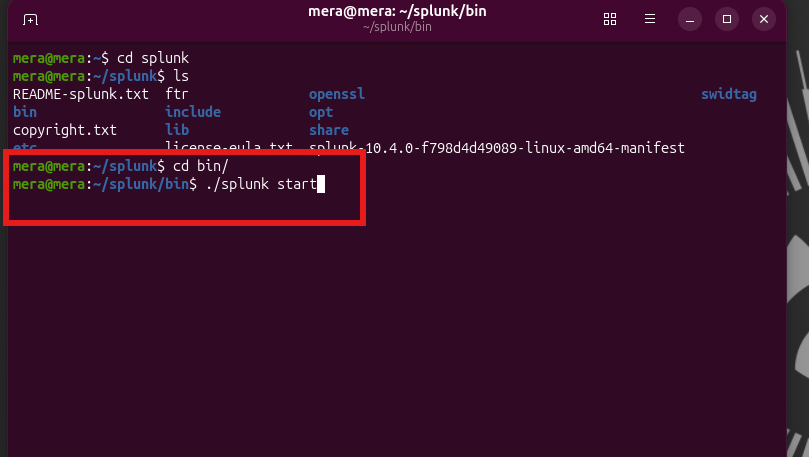
Next, navigate to the Splunk directory and start the Splunk CLI using the following commands:
cd splunk/bin
Then start Splunk:
./splunk start
This will launch Splunk and begin the initial setup process.
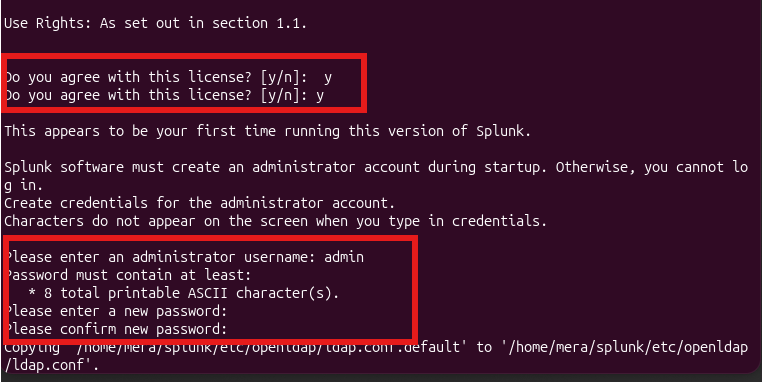
The license agreement will be displayed. Press Enter to scroll through it, then type y to accept the terms.
Next, create an administrator username and password. This will be used to log in to Splunk and manage the system.
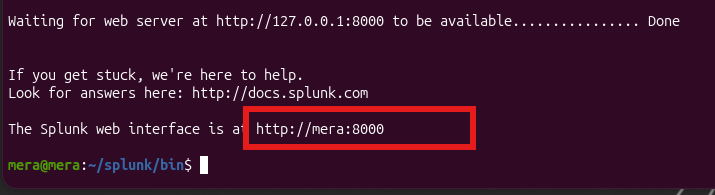
Splunk is now ready to use. It will start the Splunk Web interface on port 8000. The link to access Splunk is:
http://localhost:8000
If you are accessing it from another machine, replace localhost with the server’s IP address:
http://<server-ip>:8000
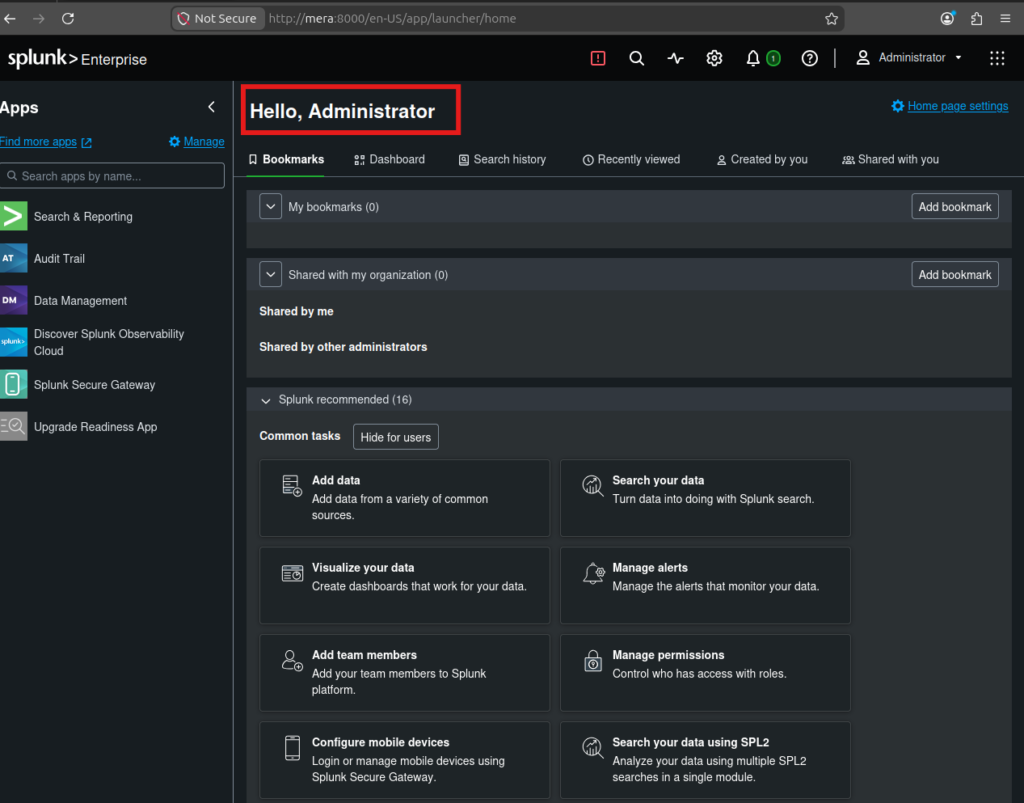
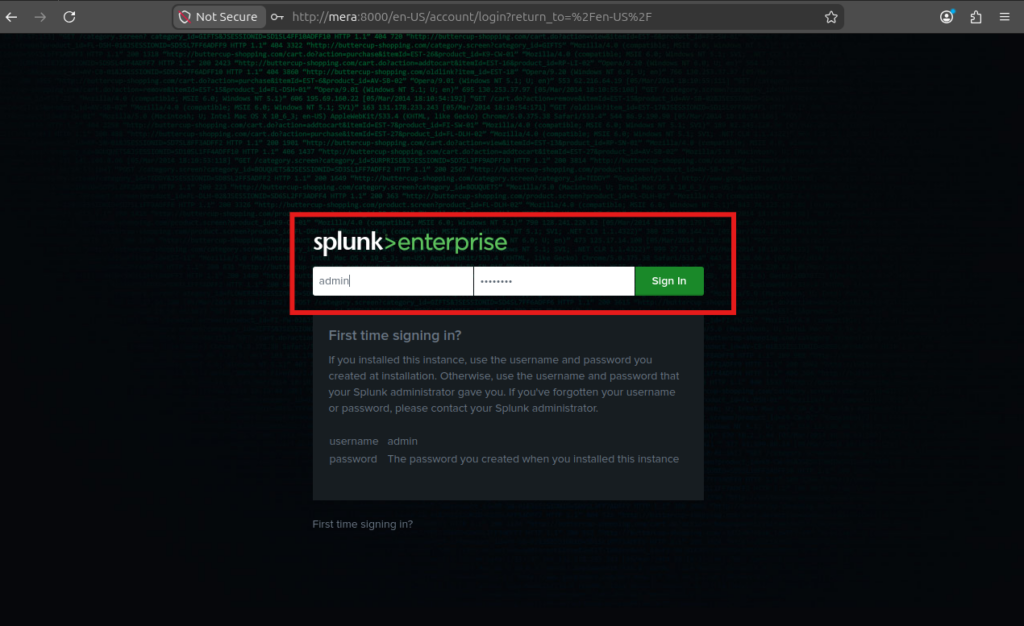
Now open Splunk Web in your browser. Enter the administrator username and password that you created during the setup process, then log in to access the Splunk dashboard.
After logging in, Splunk will look like this.